
Hey folks, long time no speak – it’s been a crazy amount of time since my last blog, so it’s great to get back into it again. I won’t update on the last 12 months or so, but in short I’ve had a great time on my former role at Databricks working in UK Healthcare before recently moving into a specialist role as an architect (still at Databricks) focussing on Enterprise Data Warehousing and BI. For those that know me you’ll know this has been a long-time passion of mine and one I’ve focussed the bulk of my career on, so it’s great to be in a role that allows me to go deep in the tech and help customers migrate and adopt the platform.
Right, with that out of the way, this opening blog is a bit of a fun one. It came about from a recent customer POC where we were exploring ways to migrate their legacy SQL Server code to Databricks as part of an EDW migration. They had a ton of complex stored procedures that needed moving onto the Databricks platform.
Disclaimer
Now, before I go any further, it would be remiss of me not to mention a couple of things:
- This example is by no means “production” code. It works well, but please validate it in your own environment and tweak as needed.
- For production grade implementations for SQL Server code migration to Databricks that’s fully integrated, audited, tested and robust – check out both our Legion offering, developed by the excellent Rob Whiffin here that features a rich UI and approach to such tasks, but also check out Databricks’ recent acquisition of BladeBridge Technologies – this brings the enterprise-scale migration capabilities of Bladebridge into the native platform and is a massive addition to Databricks in this space.
With that out of the way, let’s get down to fun business. Here’s the scenario:
Scenario
You have lots of code – a mix of general SELECT statements of varying complexity through to deep, detailed stored procedures that mix of general DML logic with more complex procedural stuff like loops, cursors etc.
You want to move to Databricks, but there’s certain things that don’t (currently) convert directly to Databricks SQL. As of writing (February 2025) the approach is to convert complex procedural code in stored procedures into Databricks notebooks, then use a mix of Python and SQL to replicate the logic.
Now, for those who are embarking on net new work that requires procedural logic that you want to build in Databricks SQL, speak to your Databricks account team about potential previews and developments in this space.
For this blog, I’m not using the customer’s code for obvious reasons, so I’ve created some simple tables with data and also some stored procedures in Azure SQL to demonstrate the concept.
See below for the DDL script and one of the stored procedures.
--Get total revenue for a specific product
CREATE PROCEDURE GetProductRevenue
    @ProductID INT
AS
BEGIN
    SELECT p.Name, SUM(o.Quantity * p.Price) AS TotalRevenue
    FROM Orders o
    JOIN Products p ON o.ProductID = p.ProductID
    WHERE p.ProductID = @ProductID
    GROUP BY p.Name;
END;
And for the DDL code that creates the tables –
SET ANSI_NULLS ON
GO
SET QUOTED_IDENTIFIER ON
GO
CREATE TABLE [dbo].[Customers](
	[CustomerID] [int] IDENTITY(1,1) NOT NULL,
	[Name] [nvarchar](100) NULL,
	[Email] [nvarchar](255) NULL
) ON [PRIMARY]
GO
ALTER TABLE [dbo].[Customers] ADD PRIMARY KEY CLUSTERED
(
	[CustomerID] ASC
)WITH (STATISTICS_NORECOMPUTE = OFF, IGNORE_DUP_KEY = OFF, ONLINE = OFF, OPTIMIZE_FOR_SEQUENTIAL_KEY = OFF) ON [PRIMARY]
GO

CREATE TABLE [dbo].[Products](
	[ProductID] [int] IDENTITY(1,1) NOT NULL,
	[Name] [nvarchar](100) NULL,
	[Price] [decimal](10, 2) NULL
) ON [PRIMARY]
GO
ALTER TABLE [dbo].[Products] ADD PRIMARY KEY CLUSTERED
(
	[ProductID] ASC
)WITH (STATISTICS_NORECOMPUTE = OFF, IGNORE_DUP_KEY = OFF, ONLINE = OFF, OPTIMIZE_FOR_SEQUENTIAL_KEY = OFF) ON [PRIMARY]
GO

CREATE TABLE [dbo].[Orders](
	[OrderID] [int] IDENTITY(1,1) NOT NULL,
	[CustomerID] [int] NULL,
	[ProductID] [int] NULL,
	[Quantity] [int] NULL,
	[OrderDate] [datetime] NULL
) ON [PRIMARY]
GO
ALTER TABLE [dbo].[Orders] ADD PRIMARY KEY CLUSTERED
(
	[OrderID] ASC
)WITH (STATISTICS_NORECOMPUTE = OFF, IGNORE_DUP_KEY = OFF, ONLINE = OFF, OPTIMIZE_FOR_SEQUENTIAL_KEY = OFF) ON [PRIMARY]
GO
ALTER TABLE [dbo].[Orders] ADD  DEFAULT (getdate()) FOR [OrderDate]
GO
ALTER TABLE [dbo].[Orders]  WITH CHECK ADD FOREIGN KEY([CustomerID])
REFERENCES [dbo].[Customers] ([CustomerID])
GO
ALTER TABLE [dbo].[Orders]  WITH CHECK ADD FOREIGN KEY([ProductID])
REFERENCES [dbo].[Products] ([ProductID])
GO
Code Conversion Summary
With our “source” environment ready, it’s time for the fun stuff. This involves a couple of steps, with the high level approach summarised as:
- Export your source .sql files
- Import them to a Volume in your Databricks Schema (Database)
- Run my code that effectively does the following:
- Parses the SQL code from the sql files and loads them into a table
- Applies some regex expressions to tidy up some of the fluff
- For each row, pass a defined prompt, via AI_QUERY, to the SQL code with instructions to convert
- The converted code is stored back in the main table before being exported as a Databricks Notebook
- DONE!
Also, take a look at this article here, which goes into the core process of what we’re doing here.
Code Conversion Step-by-Step
Prerequisites
- A Unity Catalog-enabled Databricks workspace
- An useable model serving endpoint, see here for more details
- That’s it!
Import SQL Files
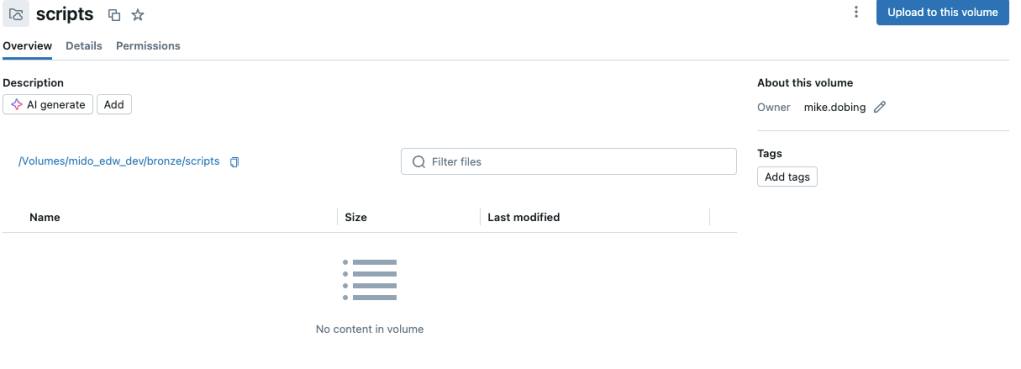
With your .sql files exported, your first step is to import these files into a volume attached to a database in your Unity Catalog metastore:

Code Conversion Process
With the files uploaded, it’s a matter of going through the notebook provided (see code snippets below) to go through the process. Obviously substitute with your own tables, paths etc.
Define the Config
%python
#apply config
base_table = 'mido_edw_dev.bronze.llmdata'
source_script_path = '/Volumes/mido_edw_dev/bronze/scripts/'
parsed_table = 'mido_edw_dev.bronze.parsedsql'
transpiled_table = 'mido_edw_dev.bronze.transpiledSQLAdvanced'
final_transpiled_view = 'mido_edw_dev.bronze.vFinalTranspile'
notebook_output_path = '/Workspace/Users/user@usercompany.com/SQL Transpiler/outputs/'
Drop our base table for a fresh run:
%python

spark.sql(f"drop table if exists {base_table}")
Ingest our .sql files from Unity Catalog Volume:
Note, on this one, when the files were exported from SQL Server Management Studio they were encoded as utf-16-le, so I had to handle this as part of the parsing. If you get some funky symbols instead, encode for utf-8 instead.
%python
# Read in *.sql files exported from Azure SQL and parse as utf16
#Assumes you've imported your files to the relevant volume in UC
import os
from pyspark.sql import Row

#replace with yours
folder_path = source_script_path

# List all files in the folder
file_list = os.listdir(folder_path)

# Initialize an empty list to hold the rows
rows = []

# Iterate through each file in the folder
for file_name in file_list:
    file_path = os.path.join(folder_path, file_name)
    if os.path.isfile(file_path):  # Check if the path is a file
        with open(file_path, 'rb') as file:
            file_contents = file.read().decode("utf-16-le", errors='ignore')
            rows.append(Row(content=file_contents, path=file_path))

# Create a DataFrame with the collected rows
df = spark.createDataFrame(rows)

# Append the DataFrame to the existing table
df.write.mode("append").saveAsTable(base_table)
Querying your table should show your code successfully read into the table:

Parse Base SQL
Now, this section can be customised. In my scenario, I was working with purely stored procedures so I wrote some regexp_replace code to replace the Create Procedure…BEGIN…END syntax from the stored procedures. I could have handled this in my prompt later, but thought I’d make it a bit easier by doing some pre-processing:
%python

spark.sql(f"""
CREATE OR REPLACE TABLE {parsed_table}
as
with basequery as (
  select path as source,
  REGEXP_REPLACE(content,'.*BEGIN', '') AS contentout
from
  {base_table}
),
removeend as
(select source,
  REGEXP_REPLACE(contentout,'.END*', '') AS contentfinal
from
  basequery)
select source, contentfinal from removeend
""");

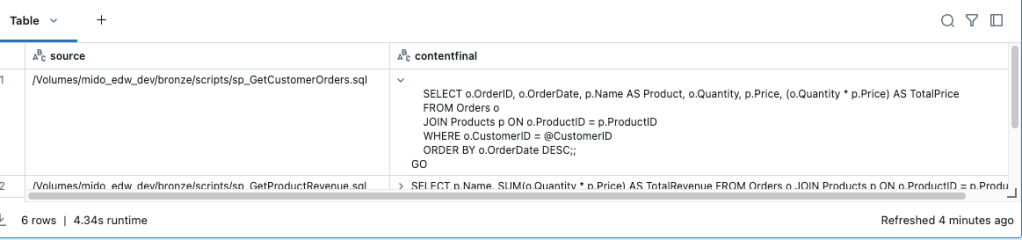
display(spark.sql(f"select * from {parsed_table}"))
This produces a slightly cleaner set of code for conversion:
The Magic Part (AI_QUERY)
This is the fun bit now. With our code ready, we’re now going to define a prompt, then pass that into AI_QUERY to then apply the conversion logic.
Before I show the code, let’s just break down what AI_QUERY does:
The
ai_query()function is a built-in Azure Databricks SQL function, part of AI functions. It allows these types of models to be accessible from SQL queries:
- Custom models hosted by a model serving endpoint.
- Models hosted by Databricks Foundation Model APIs.
- External models (third-party models hosted outside of Databricks).
For syntax and design patterns, see ai_query function.
So, without further ado, let’s crack on:
The Prompt
We first define a prompt. This can be as a simple as “convert this T-SQL to Databricks PySpark” or you can go more complex. I started with a basic prompt before expanding into more detail. See below:
%python
#advanced prompt
prompt = """
You are an expert in both SQL Server (T-SQL) and Databricks (PySpark SQL). Your task is to convert SQL Server Stored Procedures into equivalent PySpark-based code in Databricks.

Follow these guidelines:
	•	Translate T-SQL logic into PySpark, using DataFrames and Spark SQL instead of procedural constructs.
	•	Remove stored procedure declarations (CREATE PROCEDURE & RETURN), replacing them with PySpark functions where needed.
	•	Replace variable declarations (DECLARE @var INT) with Python variable assignments.
	•	Replace SELECT INTO #TempTable with DataFrame transformations (df.createOrReplaceTempView).
	•	Convert MERGE, INSERT, UPDATE, and DELETE statements into equivalent PySpark operations (join, withColumn, filter, union, etc.).
	•	Replace CURSORS and WHILE loops with DataFrame transformations whenever possible.
	•	Ensure Databricks-specific optimizations, such as broadcast joins (broadcast(df)), caching, and avoiding unnecessary collect() calls.
  •	Don't use any spark.read.format(jdbc) calls, these shouldn't be needed. Instead, assume a table exists locally.

Step 1: Understanding the SQL Server Stored Procedure

Analyze a given SQL Server Stored Procedure. Extract:
	1.	The tables and views it references.
	2.	The variables declared and their data types.
	3.	The business logic, such as filtering, aggregations, and loops.
	4.	Any temporary tables or cursors.

Step 2: Generating Equivalent PySpark Code

Convert the given SQL Server Stored Procedure code into PySpark DataFrame-based code in Databricks.
	•	Use Spark DataFrames, not raw SQL, unless necessary.
	•	Replace variable assignments (DECLARE) with Python variable assignments.
	•	If using SELECT INTO #TempTable, convert it into a DataFrame operation instead.
	•	If the stored procedure has output parameters, return the equivalent value from a PySpark function.

Step 3: Handling Complex Constructs
Step 3A: Handling Temp Tables (#TempTable)

Convert any T-SQL temp table operation into PySpark DataFrames, ensuring createOrReplaceTempView is used properly.

Step 3B: Handling Cursors and Loops

Convert any provided SQL Server cursor-based loop into an efficient PySpark equivalent.
Instead of using row-by-row processing, use PySpark transformations.

Step 3C: Handling MERGE Statements

Convert any provided MERGE statement into an equivalent PySpark DataFrame operation.
Ensure the PySpark solution uses join(), withColumn(), and union() where appropriate.

DO NOT PROVIDE ANY EXPLANATION, just provided the converted code.
DO NOT say anything along the lines of, Here is the equivalent... Just give the code, nothing else.
Return the entire output code. DO NOT TRUNCATE anything
"""
You will see I added rules as I iterated over the testing, such as “DO NOT PROVIDE ANY EXPLANATION” – I found the LLM was prone to proudly boasting about what it had done. This might be useful for some people (ie to have the code documented), but for me I just wanted the converted code, nothing else.
The Conversion
With the prompt defined, we now run the code which puts it all together. This is a very simple SQL statement that runs a CTAS (Create Table as Select) to store the output of the LLM prompt:
%python

#replace the endpoint with your own and remember to amend relevant table details

query = f"""
CREATE OR REPLACE TABLE {transpiled_table}
as
SELECT
source,
    ai_query(
    'PUT_YOUR_SEVERVING_ENDPOINT_HERE',
    "{prompt}"||contentfinal) AS output
    FROM {parsed_table}
    """

display(spark.sql(query))
Run this code, and it will create our transpiled_table with the converted output:

You can see from the above how our .sql code has been converted into pyspark code that can be readily used in Databricks.
Tidying Up
This bit is a bit of tidy up by removing some artifacts that the LLM had added. Again this could be removed in the prompt but I just opted for some rules here to finish it off:
%python

spark.sql(f"""
-- fix random format stuff
update {transpiled_table}
set output = regexp_replace(output,'```python','');
""")

spark.sql(f"""
update {transpiled_table}
set output = regexp_replace(output,'```','');
""")
Final View
The final step in creating the output before export is to apply some logic on the .sql file names. This is purely so I can then use them to name the subsequent notebooks. There are a ton of ways to do this, but I used the good old CHARINDEX function to strip out the filename from the full Volume filepath. This gives us a simple way of naming the outputted files:
%python

spark.sql(f"""
create or replace view {final_transpiled_view}
as
with cte_removepath as (
select
replace(SUBSTRING(source, CHARINDEX('scripts/', source) + LEN('scripts/'), LEN(source)),'.sql','') AS content_before_scripts,
* from {transpiled_table})

select * from cte_removepath
""")
And we can see how this looks in our view, with the script names nicely formatted to be used as our notebook names. Note, you can customise this as needed depending on how your SQL files were exported.
In mine, this now looks like:

Export to Notebooks
Our final step is to export from our table to notebooks in Databricks that can then be used in the platform. This final piece of code achieves just that:
%python
import base64
from databricks.sdk import WorkspaceClient
from databricks.sdk.service.workspace import ImportFormat, Language
#from databricks_api.exceptions import DatabricksApiException

# Initialize the Databricks API client

w = WorkspaceClient()

# Read the contents from the table
df = spark.table(final_transpiled_view)

# Iterate over each row and import the content as a Databricks notebook
for idx, row in enumerate(df.collect()):
    content = row["output"]  # Assuming the column name is 'output'
    source_file = row["content_before_scripts"] #sourcesql
    notebook_path = f"{notebook_output_path}{source_file}_nb"  # Define the notebook path
    try:
        w.workspace.import_(
            content=base64.b64encode(content.encode("utf-8")).decode("utf-8"),
            path=notebook_path,
            format=ImportFormat.SOURCE,
            language=Language.PYTHON,
            overwrite=True
        )
        print(f"Notebook {notebook_path} imported successfully.")
    except Exception as e:
        print(f"Failed to import notebook {notebook_path}: {e}")

print("✅ All notebooks have been imported!")
And thankfully, they’ve exported ok:

Completed Notebooks
Finally, we can view our exported notebooks in our defined path:

And just exploring one of them, we can see it’s converted the T-SQL Stored Procedure code into Pyspark:
from pyspark.sql import functions as F

def get_order_details(customer_id):
    orders_df = spark.table("Orders")
    products_df = spark.table("Products")

    order_details_df = orders_df.join(products_df, orders_df.ProductID == products_df.ProductID) \
        .filter(orders_df.CustomerID == customer_id) \
        .select(orders_df.OrderID, orders_df.OrderDate, products_df.Name.alias("Product"), orders_df.Quantity, products_df.Price) \
        .withColumn("TotalPrice", orders_df.Quantity * products_df.Price) \
        .orderBy(F.col("OrderDate").desc())

    order_details_df.createOrReplaceTempView("OrderDetails")

    return order_details_df

# Example usage:
customer_id = 1
order_details = get_order_details(customer_id)
order_details.show()
For comparison, here’s our source code from our Azure SQL Database:
SET ANSI_NULLS ON
GO
SET QUOTED_IDENTIFIER ON
GO
CREATE PROCEDURE [dbo].[GetCustomerOrders]
    @CustomerID INT
AS
BEGIN
    SELECT o.OrderID, o.OrderDate, p.Name AS Product, o.Quantity, p.Price, (o.Quantity * p.Price) AS TotalPrice
    FROM Orders o
    JOIN Products p ON o.ProductID = p.ProductID
    WHERE o.CustomerID = @CustomerID
    ORDER BY o.OrderDate DESC;
END;
GO
Conclusion
Hopefully this blog has gone some way to show how you can use the inbuilt features of Databricks, in this case, AI_QUERY, to leverage the power of the AI built into the platform to do something a bit above and beyond the norm.
This is just one example of how you can use generative AI to help boost productivity in a data environment, but of course there will be tons more!
Let me know your thoughts (and other uses of course!)
 SQL Of The North