
Want short video explainer? See the Brickbots video here
Greetings. Lots of updates at the moment, so it’s tricky picking ones to shout about.
This one deserves a call out, though – Genie Agents (formerly Genie Spaces) have always been brilliant at one thing: answering questions about your data. The trouble is, the answer is rarely the end of the job. You find something interesting, and then you copy it into a ticket, an email or a Slack message. Lazily efficient people (I consider myself in that category) have wanted the agent to do that last bit for a while.
Well, now it can. Genie Agents can use MCP connectors to pull context from, and take actions in, the tools your team already uses: Google Workspace, Microsoft 365, Jira and Confluence, Glean, Slack and GitHub. It’s in Beta.
This post isn’t a deep dive into MCP or every connector — the docs cover that — but a quickstart: what it is, how to set it up, and a nice “show me” when I asked a Genie Agent to analyse some data and then raise a GitHub issue about it.
What Are MCP Connectors in a Genie Agent?
As always, it would be remiss of me not to point you at the official Connect a Genie Agent to external tools and sources page first. In the docs’ words, a Genie Agent “can use Databricks-provided MCP (Model Context Protocol) connectors to pull context from and take actions in external tools and sources during an Agent mode conversation.”
Think of it as giving your data agent a set of hands, with a few things worth knowing up front:
- An author attaches the connectors; each user signs in to them individually. Every tool call runs with the permissions of the user who asks the question, not the author’s.
- Read tools and write tools behave differently. Read-only tools (search, fetch, list) run automatically. Write tools (sending a message, drafting an email, creating an issue) pause and ask you to approve the action first.
- It’s governed. The connectors are Databricks-provided MCPs that live in
system.aias Unity Catalog securables, and every call goes through Unity Catalog and Unity Gateway. - Agent mode only. MCP tools don’t run in Chat mode.
The connectors on offer: Google Drive, Gmail, Google Calendar, Microsoft 365 (SharePoint, Teams, Outlook, Calendar), Atlassian (Jira and Confluence), Glean (Beta), Slack and GitHub. Each has its own limits; for example, Gmail and Outlook can draft email but can’t send it, and GitHub only sees public repositories by default.
The Scenario
I wanted the classic “find something, then do something about it” loop. A Genie Agent over the samples.wanderbricks dataset (a made-up holiday rentals business in the samples catalog) answers a question about guest reviews, then raises the finding as a GitHub issue in a throwaway public repo.
I picked GitHub on purpose: it’s the easiest connector to demo without any work, email, or documents ending up in a screenshot. The same flow applies to the other connectors.
Prerequisites
From the docs, plus one I learnt the hard way:
- A Unity Catalog-enabled workspace.
- Agent mode and Unity Gateway available in your region.
- A workspace admin has turned on Connect external tools in Genie Agents on the Previews page.
- Every user of the agent has both the Workspace access and Databricks SQL access entitlements. Consumer-only, Databricks SQL-only and account-only users can’t use MCP tools.
- To attach a connector, the author needs EXECUTE on the connector’s MCP Service (for example
system.ai.github), plus USE CATALOG and USE SCHEMA onsystemandsystem.ai. - Every user needs an account in each connected system. In my case, a GitHub account and a public repo to play in.
The Fun Stuff
Alright, enough theory — let’s build something.
Step 1: A Genie Agent to Start From
I built a small agent called Wanderbricks Guest Reviews over three tables: reviews, properties and destinations. It has the two joins between them, a filter for live (not deleted) reviews, and one example query. That part is standard Genie Agent stuff, so I won’t labour it. The example query is the one the agent leans on later:
SELECT destinations.destination, destinations.country, ROUND(AVG(reviews.rating), 2) AS avg_rating, COUNT(*) AS review_countFROM samples.wanderbricks.reviews AS reviewsJOIN samples.wanderbricks.properties AS properties ON reviews.property_id = properties.property_idJOIN samples.wanderbricks.destinations AS destinations ON properties.destination_id = destinations.destination_idWHERE reviews.is_deleted = false AND reviews.rating IS NOT NULLGROUP BY destinations.destination, destinations.countryORDER BY avg_rating ASC
Step 2: Add the Connector
Open the agent, click Configure, go to the Sources tab and click Add. Alongside Table, Metric View and friends there’s now an MCP connection option. (The docs call these “MCP Services”; same thing.)
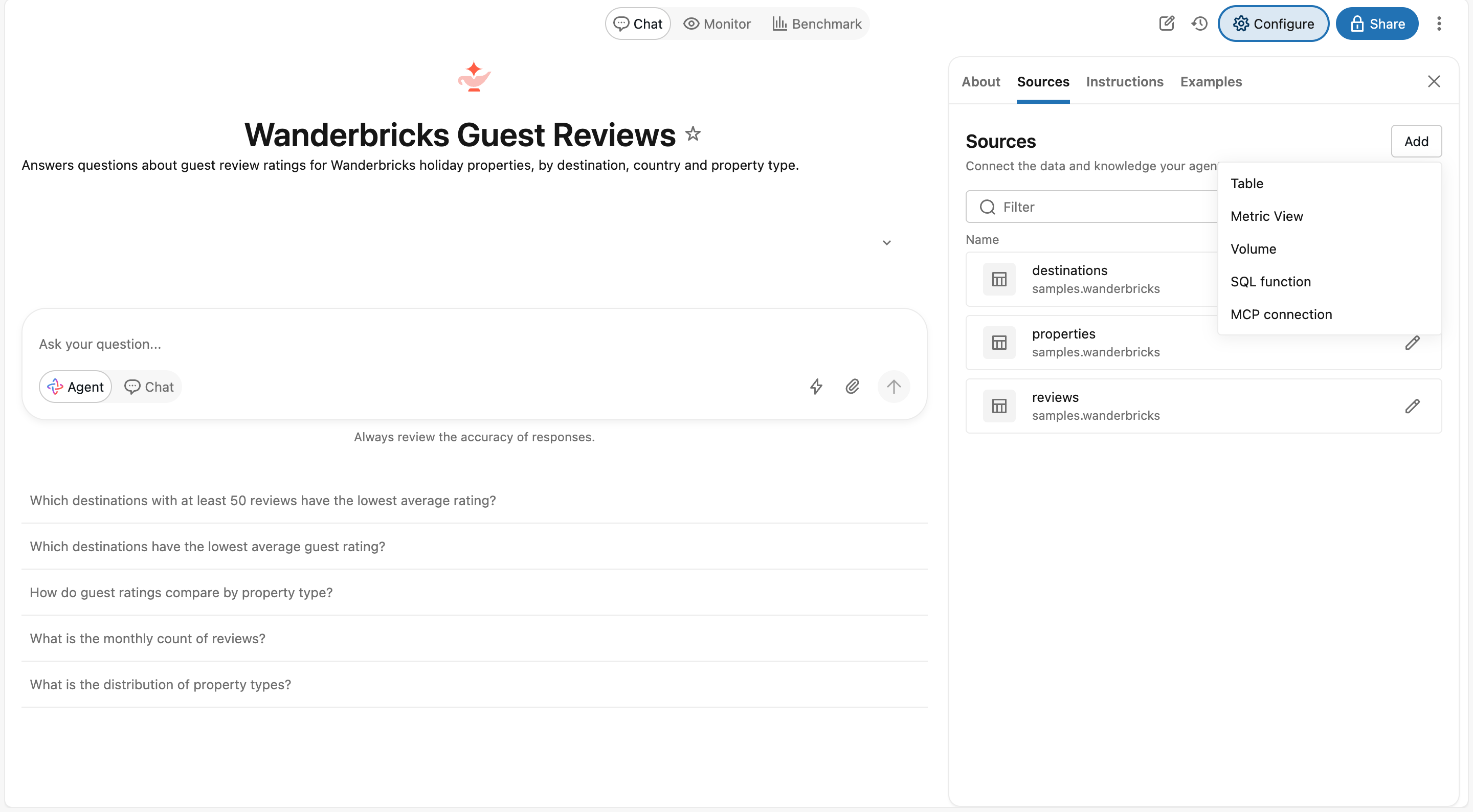
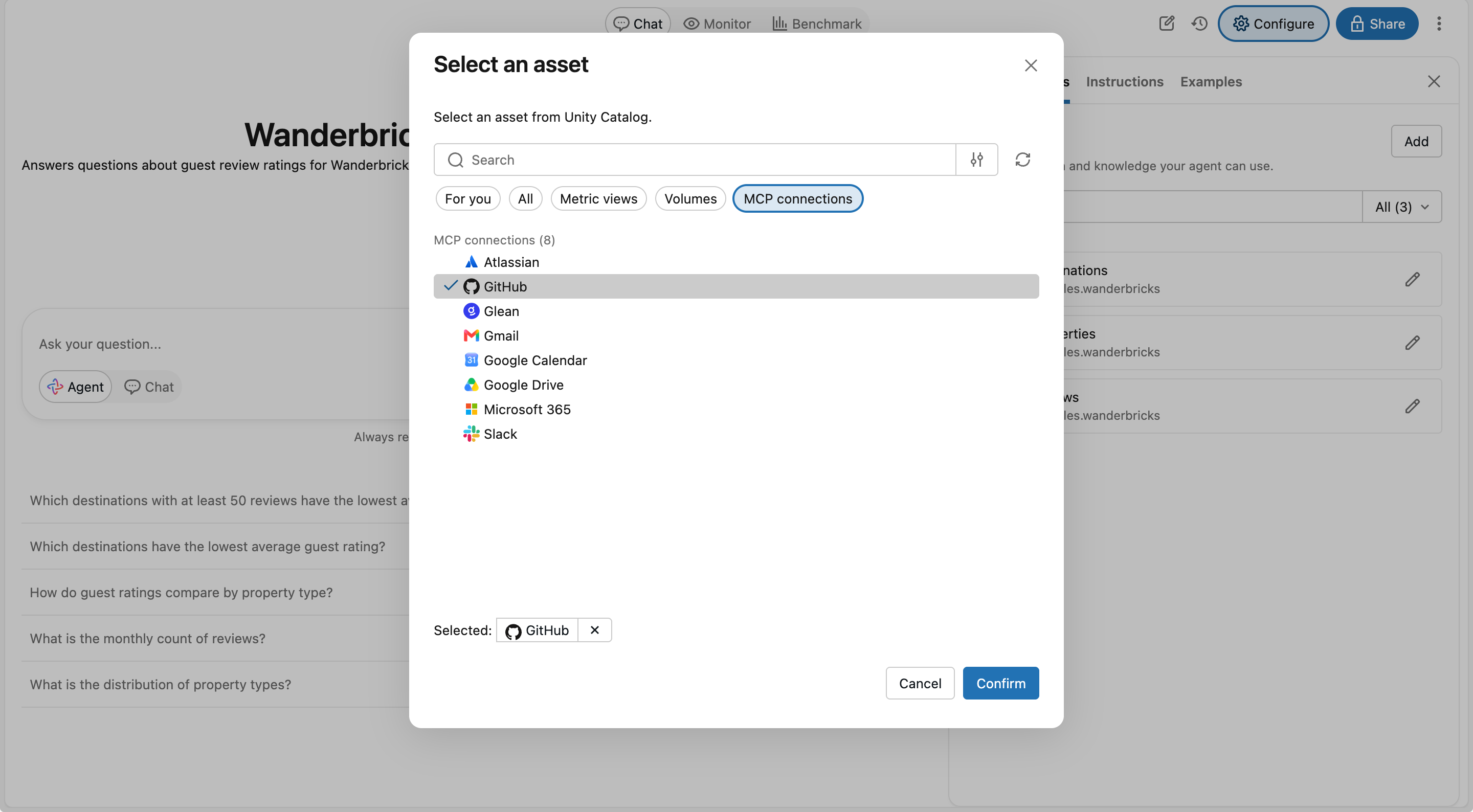
That opens a picker with the Databricks-provided connectors. I picked GitHub and clicked Confirm.
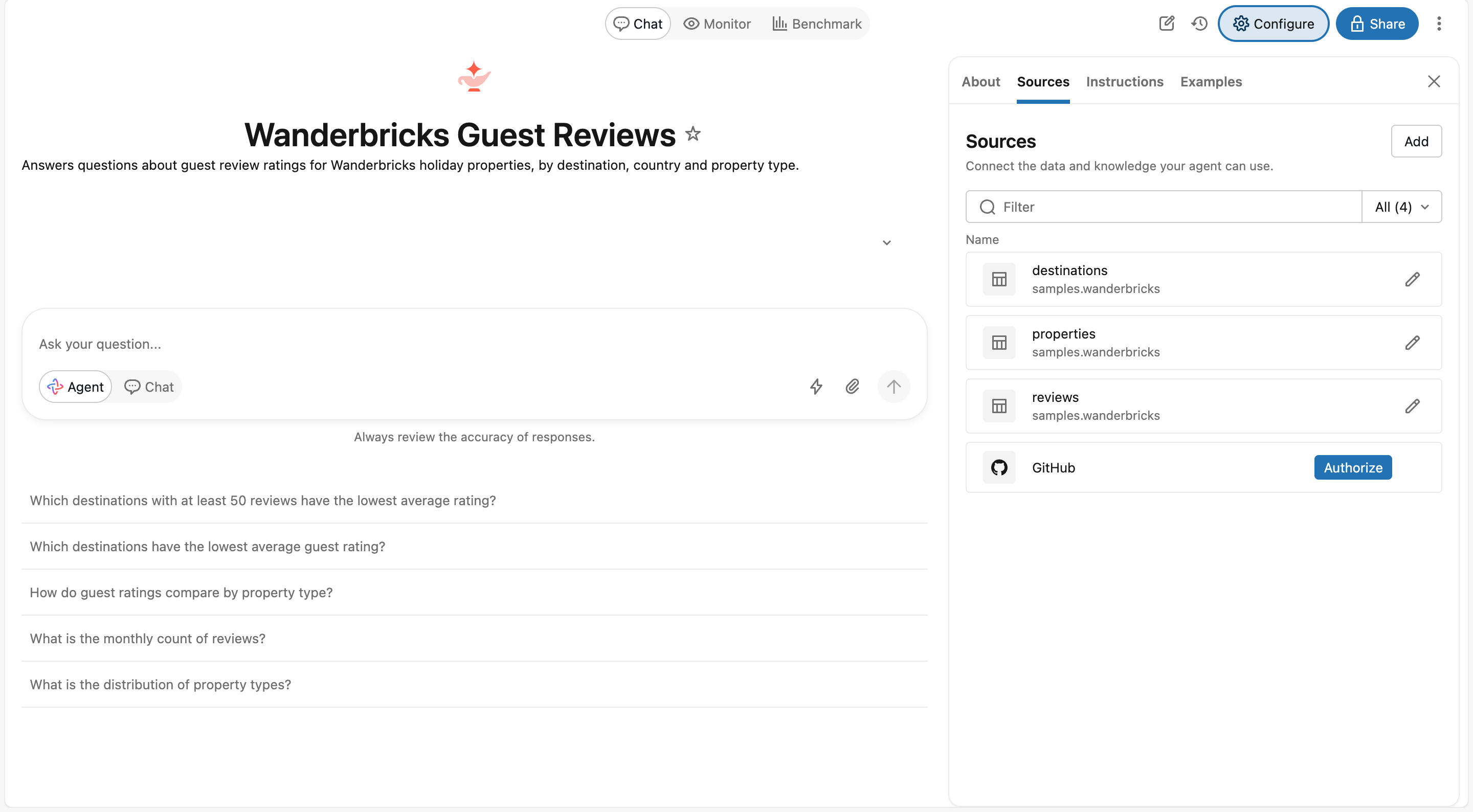
GitHub now sits in the source list next to the tables, with an Authorize button for signing in.
Step 3: Tell It How to Behave
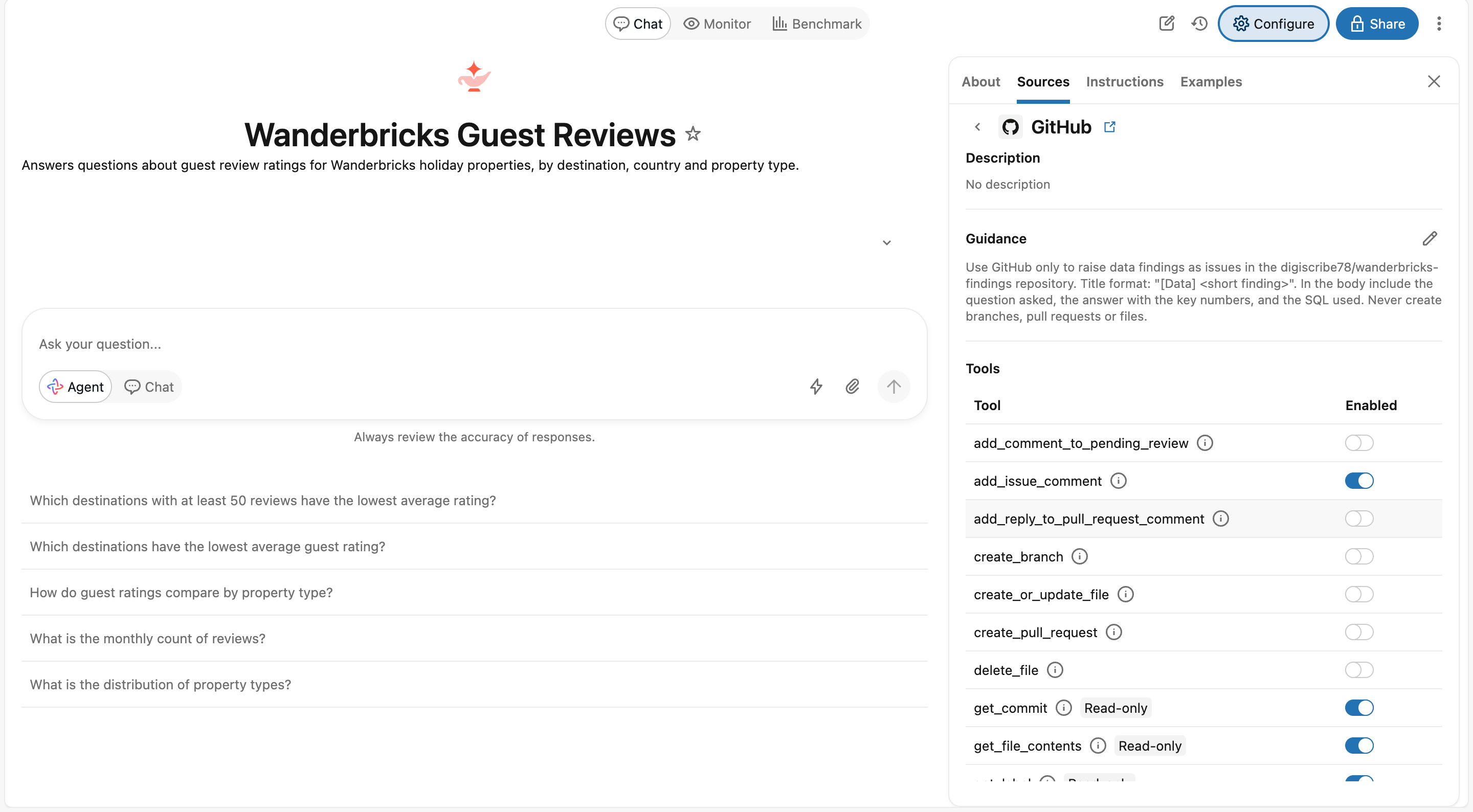
Click the connector and you get three things: the connector’s Description, a Guidance box, and a Tools list. Guidance is the docs’ “Description”: it tells the agent how and when to use the connector, and it only applies to this agent. I kept mine tight:
Use GitHub only to raise data findings as issues in the digiscribe78/wanderbricks-findings repository.Title format: "[Data] <short finding>". In the body include the question asked, the answer with the keynumbers, and the SQL used. Never create branches, pull requests or files.
Then the bit I’d urge everyone to do: switch off the tools you don’t need. The GitHub connector comes with 44 tools, and the read-only ones are clearly tagged. I switched off the write tools I had no use for (merging, pushing, deleting files, creating branches and pull requests, and so on) and left the issue tools on. The guidance is a polite request; switching a tool off means the agent can’t use it at all. Belt-and-braces.
Step 4: Ask a Question
With Agent selected in the chat box, I asked:
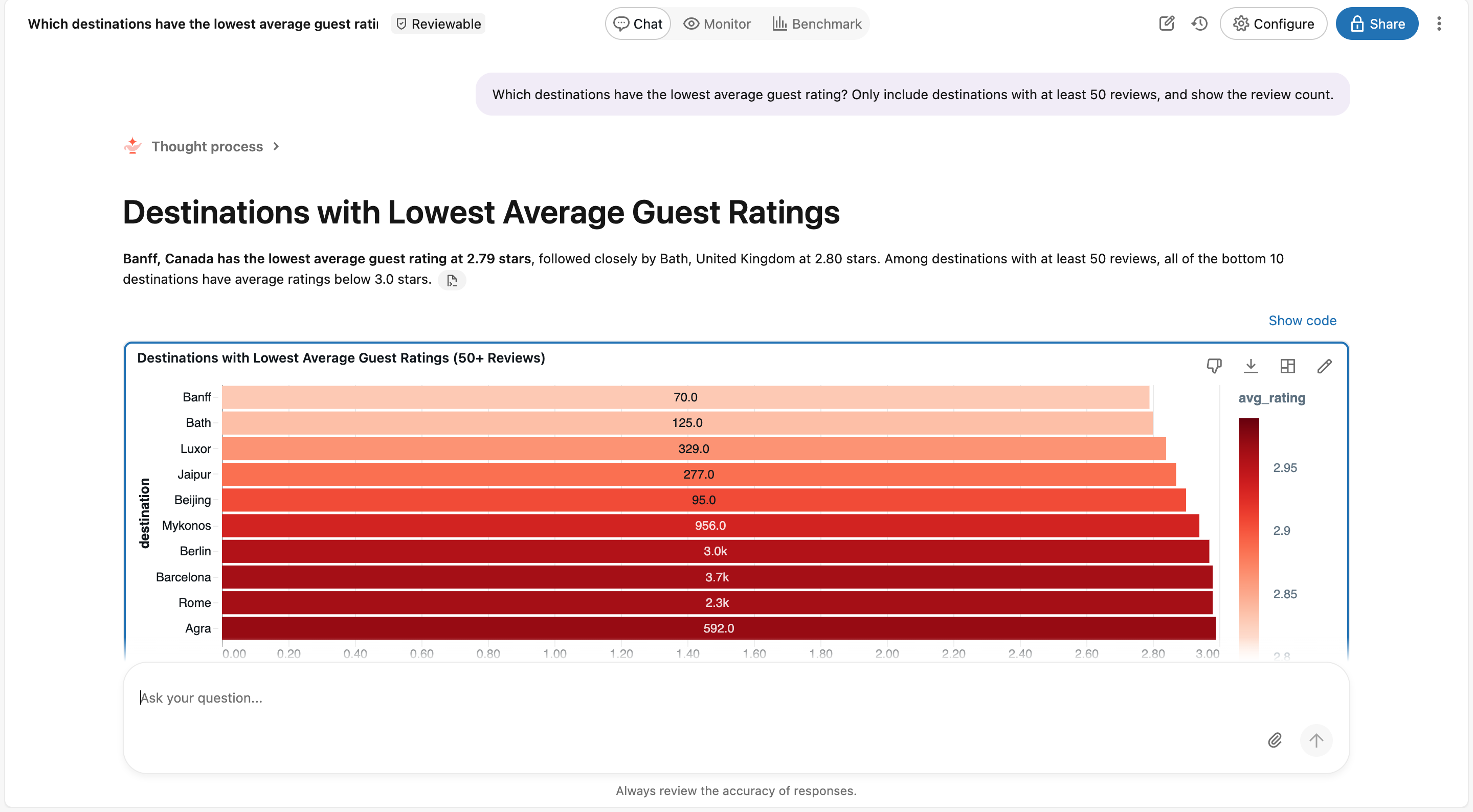
Which destinations have the lowest average guest rating? Only include destinations with at least 50 reviews,and show the review count.
It ran the query, drew a chart and listed the bottom ten: Banff, Canada at 2.79 (70 reviews) and Bath, United Kingdom at 2.80 (125 reviews) at the very bottom. That matched what I got when I ran the SQL myself.
Step 5: Raise the Issue (and Approve It)
Now the fun part. A follow-up in the same chat:
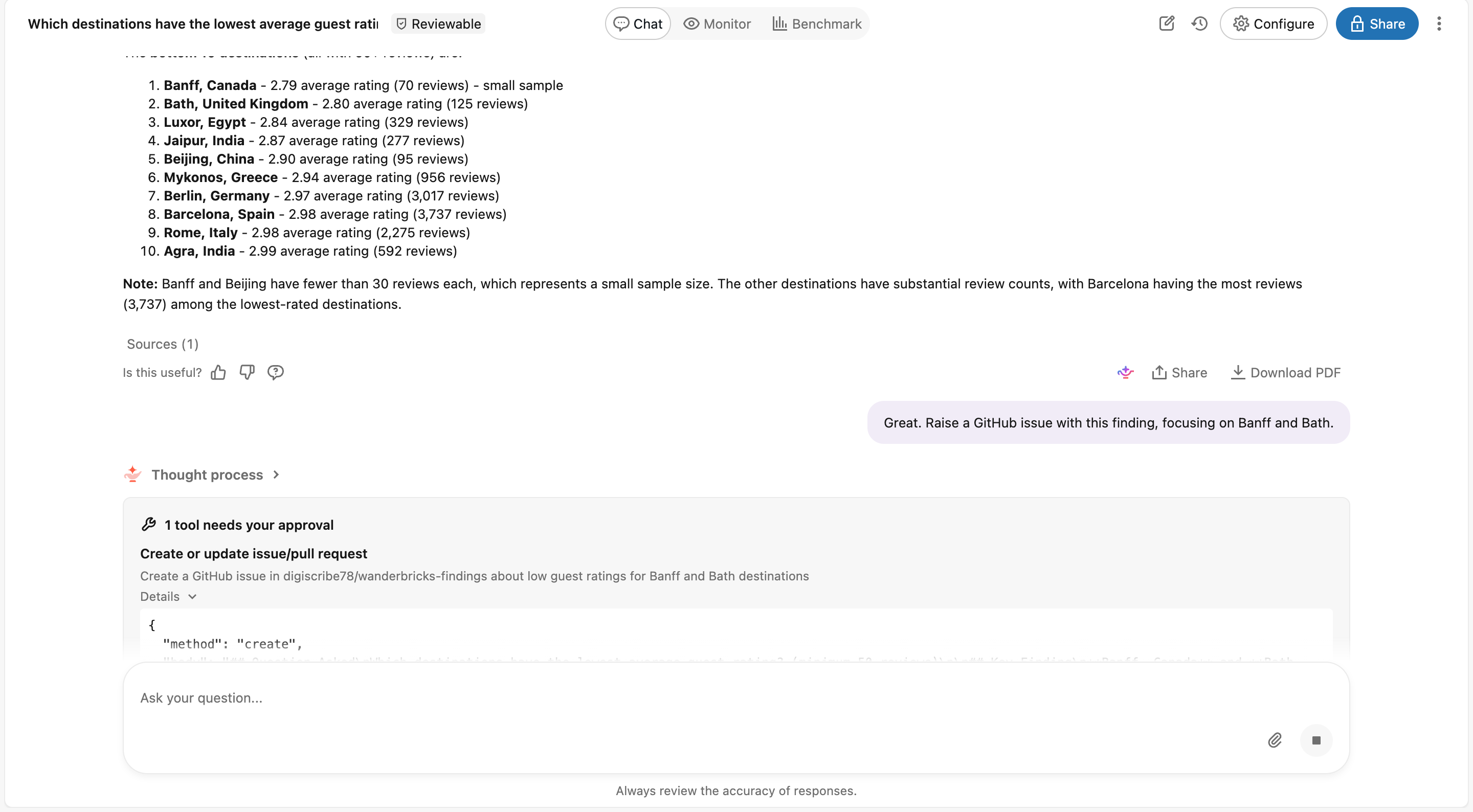
Great. Raise a GitHub issue with this finding, focusing on Banff and Bath.
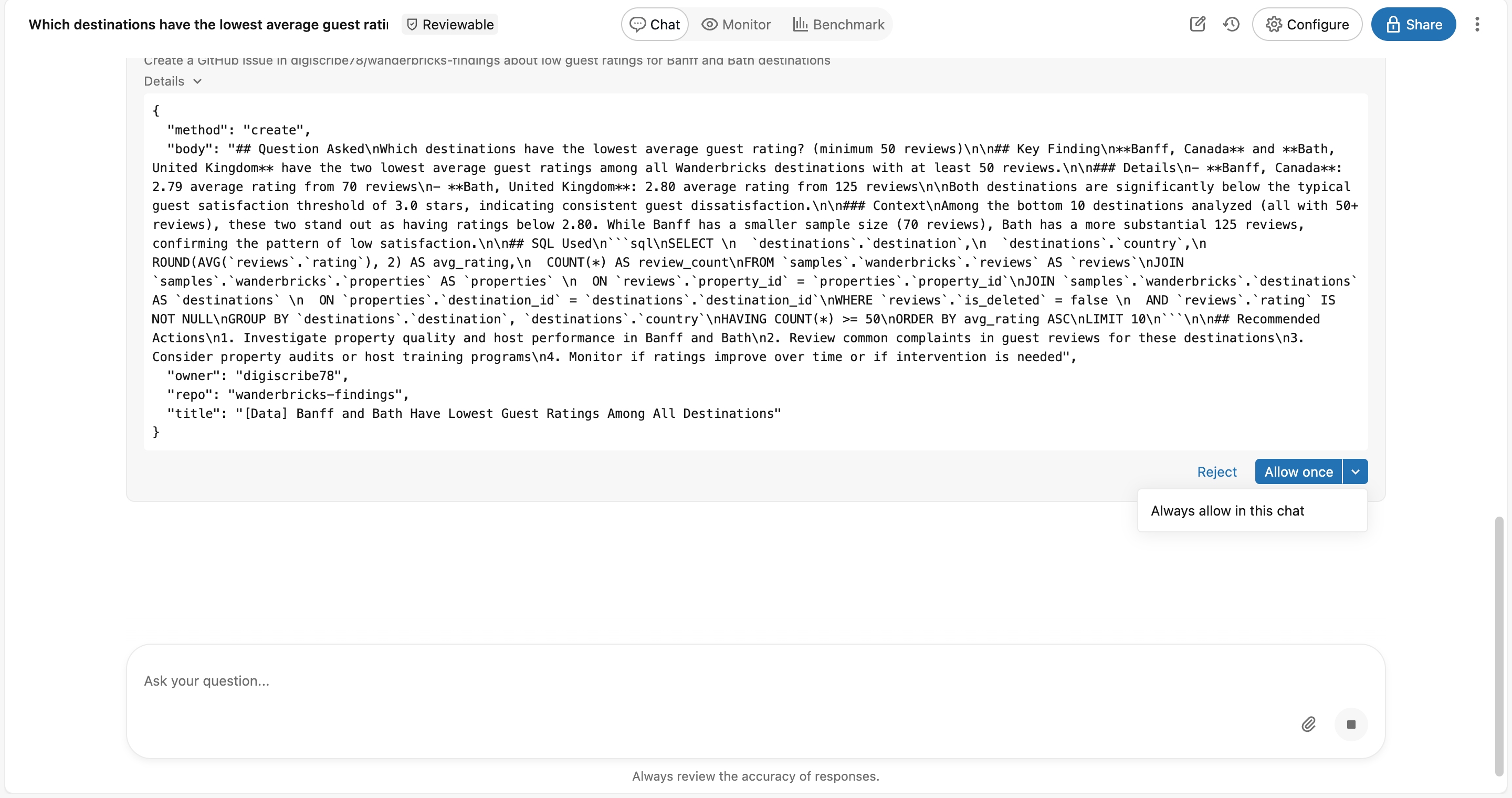
Creating an issue is a write, so the agent stops and asks: 1 tool needs your approval. Open Details to see exactly what it will send: the repo, the title in my [Data] format, and a body with the question, the numbers and the SQL.
You’ve got three choices: Allow once, Always allow in this chat (tucked under the arrow next to Allow once), or Reject. I went with Allow once.
Step 6: The Bit Where It Didn’t Work (For me)
This might be an ME problem, but I wanted to share in case others fell over the same problem. Initially, the agent returned a permissions error: the GitHub integration lacked write access to the repo.
So I asked a quick read-only question to check who it was signed in as. No approval prompt this time (read tools just run), and the answer was my own account.
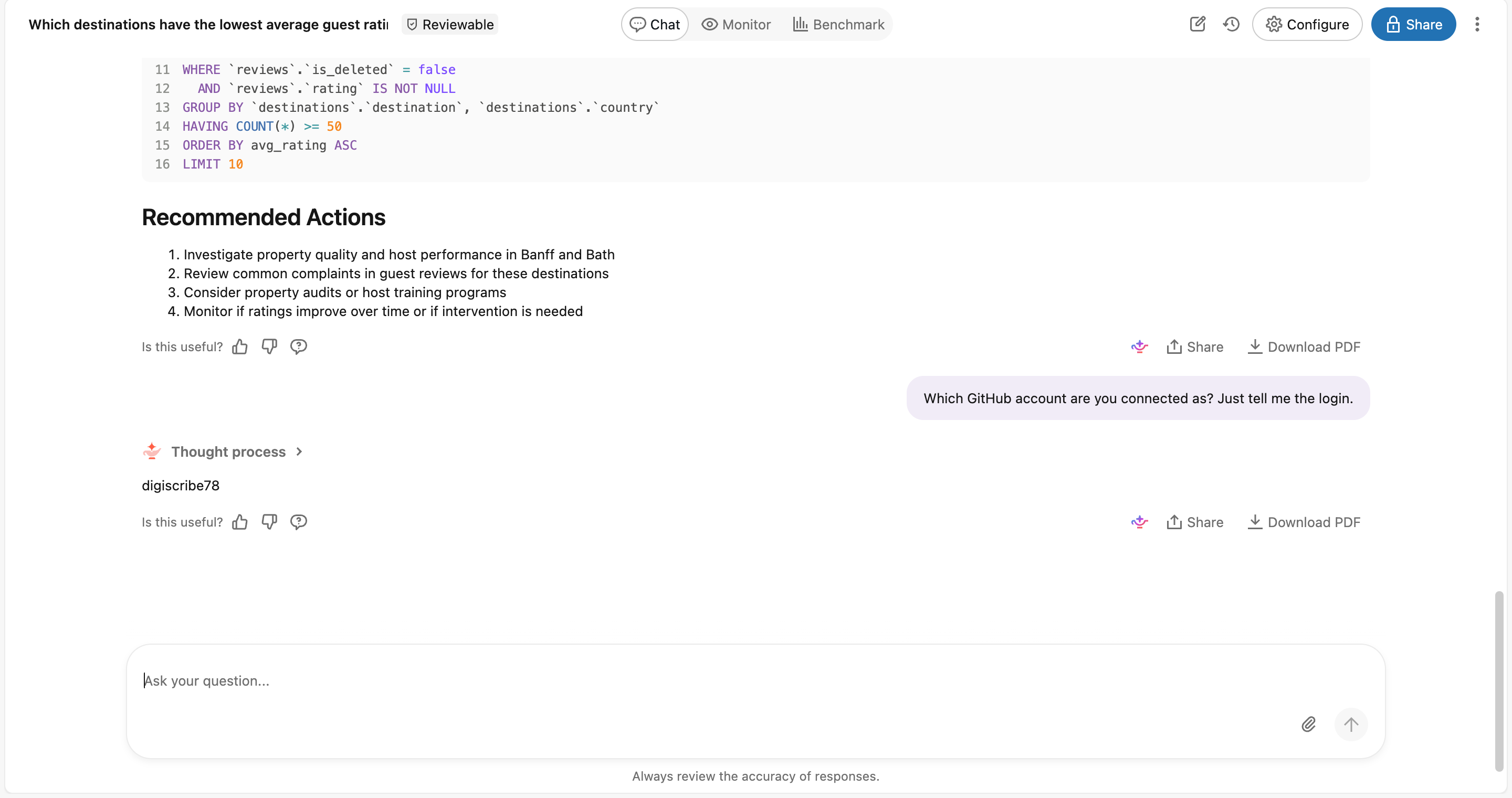
My account, my public repo, and still no write access. What fixed it was installing the Databricks GitHub connector app on my GitHub account, limited to that one repository. The docs mention the app for private repositories. In my case, writing to my own public repo needed it too. Like I said, probably a Me problem, but just in case.
Step 7: Try Again
Back in the same chat I asked it to try again. Approval prompt, Allow once, and this time:
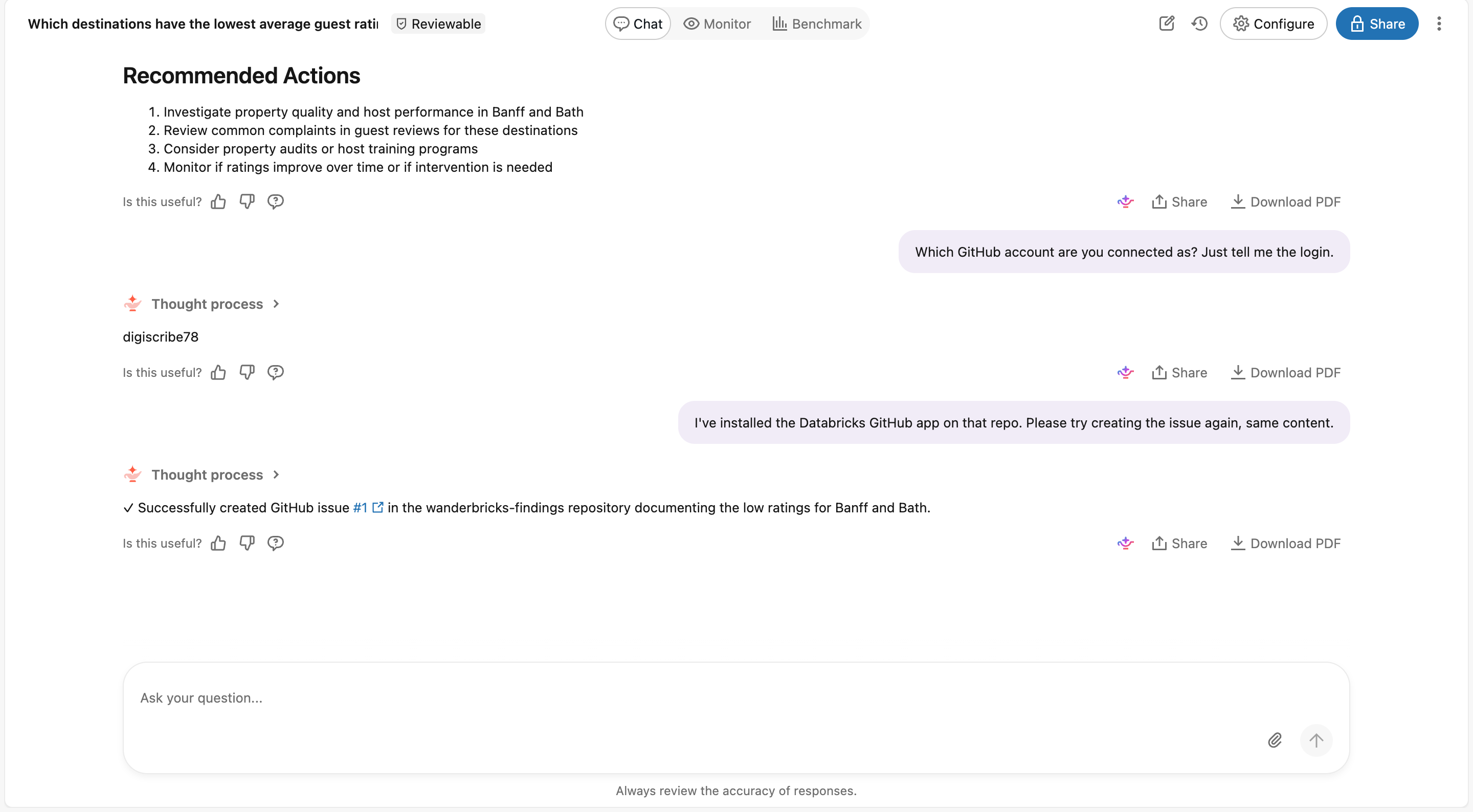
And over on GitHub, there it is, opened by me, because the tool call runs as the person asking:
![GitHub issue #1, "[Data] Banff and Bath Have Lowest Guest Ratings Among All Destinations", opened by digiscribe78](https://sqlofthenorth.blog/wp-content/uploads/2026/10/genie-agents-mcp-10-github-issue.png)
Much rejoicing!
Things Worth Knowing
- Connectors run in Agent mode only — Chat mode won’t touch them.
- The APIs are read-only for now — Through the Agent mode APIs, only read tools work and users can’t authenticate. Sign-in and write approvals happen in the UI.
- Write access may require more than a sign-in — For GitHub, install the Databricks GitHub connector app on the repos you want it to write to (in my experience, see Step 6). Private repos need it too; GitHub Enterprise Server isn’t supported.
- Each connector has its own limits — Drive handles native Docs, Sheets and Slides up to 25 MB (no PDFs). Gmail and Outlook draft but don’t send. Slack can’t edit or delete a message once sent. Glean is search-only and needs a metastore admin to set it up first. The docs list them all.
- Scope it down — Guidance steers the agent; switching tools off actually stops it.
- Read the Details before you approve — The agent writes the content, and it can embellish.
Bot note: Start every new connector with “Allow once”, not “Always allow in this chat”. Read the Details card a few times until you trust what the agent sends. Your future self (and your Slack channels) will thank you.
Conclusion
That’s pretty much it. With a couple of clicks, a Genie Agent goes from answering questions to acting on them: it finds something in your data, writes it up and puts it where your team works, with your permissions and your approval. The approval step is the part I like most. Nothing gets written anywhere without you seeing exactly what’s going out.
It’s Beta, so expect a few rough edges, like my GitHub write access puzzle. Next on my list is the same idea with Genie One, which can connect to external tools too. Watch this space.
As always, let me know your thoughts (and other ideas, of course!).


Leave a Reply