

Hey folks, this is one a lot of people have been asking for. Genie Code, the coding and data assistant that lives in the Databricks workspace, now has a terminal version: the Genie Code CLI. It’s in Beta (more on what that means below), and it means you can have a Databricks-aware coding agent sitting right next to your local files, your scripts and whatever editor you happen to live in.
This post isn’t an in-depth tour of everything Genie Code does — the docs cover that — but a quickstart: what it is, how to install it, and what it actually did when I pointed it at some sample data. I’ll also share a couple of things I tripped over on the way, so you don’t have to.
What Is Genie Code?
Right, so before the terminal bit, a quick word on Genie Code itself. In the docs’ words, it’s “the AI coding and data assistant for developers and technical practitioners in the Databricks workspace”. It generates and runs code, builds pipelines and AI/BI dashboards, debugs errors and works with your Unity Catalog tables, columns and lineage. It shows up in notebooks, the SQL editor, the Lakeflow Pipelines Editor, AI/BI dashboards and MLflow, and in Agent mode it plans, runs code, fixes its own errors and asks for your approval before using tools.
Think of it as the hands-on member of the Genie family: Genie One is for business users asking questions, Genie Agents are curated per-domain experts, and Genie Code is for the people building things. Everything it does is governed by your Unity Catalog permissions. (A dedicated Genie Code post is on my list. Watch this space.)
So What Is the CLI?
It would be remiss of me not to point you at the official Genie Code CLI documentation first. The short version:
- It’s a coding agent that runs locally in your terminal. It reads and edits local files, runs commands, and reaches into Databricks on your behalf. The docs describe it as working like other terminal coding agents, but preconfigured to understand Databricks.
- It drives the Databricks CLI. That includes
databricks genie askfor discovering data and answering questions about it, which you’ll see it use a lot below. - It runs as you. Same identity, same permissions; it can only do what your Databricks access allows.
- The model is managed for you. Model access comes through Unity Gateway; you can’t bring your own model subscription, and you can’t choose the model. During the Beta it uses GPT 5.6, which may differ from other Genie surfaces and can change.
- Billing goes through Unity Gateway, not Genie pricing, so it shows up in Unity Gateway usage and admins control spend with Unity Gateway budgets.
It’s also a separate experience from Genie Code in the workspace: it has its own tools, skills and instructions, which aren’t shared with the workspace (for now), and it doesn’t have every workspace capability yet. The docs position the CLI as the terminal-native companion for local files, scripts and prototypes, with the workspace as the richer, fully featured experience.
One naming trap to avoid: the product is the Genie Code CLI and its command is genie. That’s a different thing from databricks genie, which is a command group in the Databricks CLI (the one Genie Code CLI calls under the hood).
The Scenario
Nothing fancy: I wanted to see whether it could answer a data question, then turn that into a script I could keep, then answer a follow-up, all against samples.nyctaxi.trips (every workspace has it) and all read-only.
Prerequisites
- A workspace in a Unity Gateway supported region, with Unity Catalog enabled (shocking, I know)
- The Databricks CLI 1.0.0 or above, installed separately; Genie Code CLI uses it for authentication and the
geniecommands (I used v1.20.0) - A Databricks CLI profile for the workspace you want to use
- macOS, Linux or Windows
The Fun Stuff
Step 1: Install It
On macOS or Linux:
curl -fsSL https://github.com/databricks/genie-code-cli/releases/latest/download/install.sh | bash
On Windows (PowerShell):
powershell -ExecutionPolicy Bypass -c "irm https://github.com/databricks/genie-code-cli/releases/latest/download/install.ps1 | iex"
Then open a new terminal and check it’s there:
genie --version
I got genie 0.1.0-beta.2. There’s also genie doctor, which checks the install, config, auth and connectivity, and is well worth a run if anything looks off.
Step 2: Start It in a Project Folder
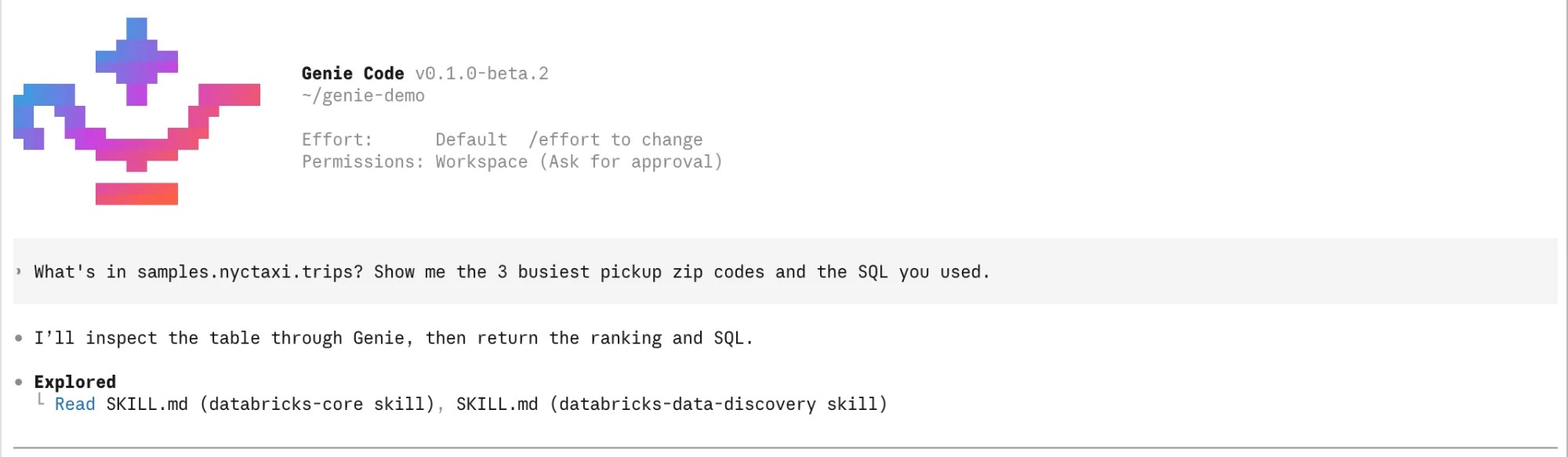
mkdir genie-demo && cd genie-demogenie
The first run walks you through picking a Databricks CLI profile (or authenticating) and asks you to confirm you trust the directory. You can also pass a profile with genie -p <profile>. Then you’re at the prompt:

Note the Permissions: Workspace (Ask for approval) line. That’s the default, and it means Genie asks before it runs a command. You’ll see why that matters in a minute.
Step 3: Ask a Data Question
First prompt:
What's in samples.nyctaxi.trips? Show me the 3 busiest pickup zip codes and the SQL you used.
The first thing it did was read its Databricks skills (databricks-core and databricks-data-discovery), then go through Genie to answer:
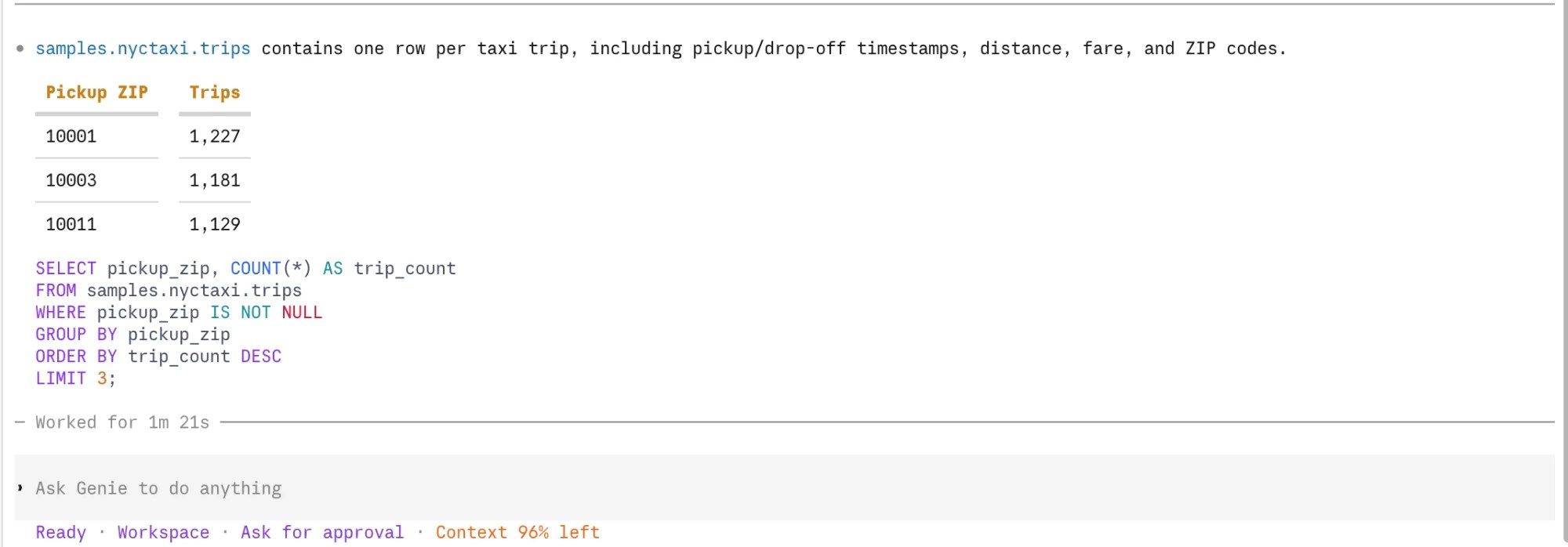
A table description, the top three and the SQL it used:
SELECT pickup_zip, COUNT(*) AS trip_countFROM samples.nyctaxi.tripsWHERE pickup_zip IS NOT NULLGROUP BY pickup_zipORDER BY trip_count DESCLIMIT 3;
Genie reported “Worked for 1m 21s” for that one.
Step 4: Turn It into a Script
This is where a terminal agent earns its keep, because the result ends up in a file you own:
Write a small Python script, busiest_zips.py, that runs that query with the Databricks SDK and prints the result. Then run it.
It read its Python SDK skill, looked up the workspace’s default SQL warehouse with the Databricks CLI, then wrote the script and showed me the diff:
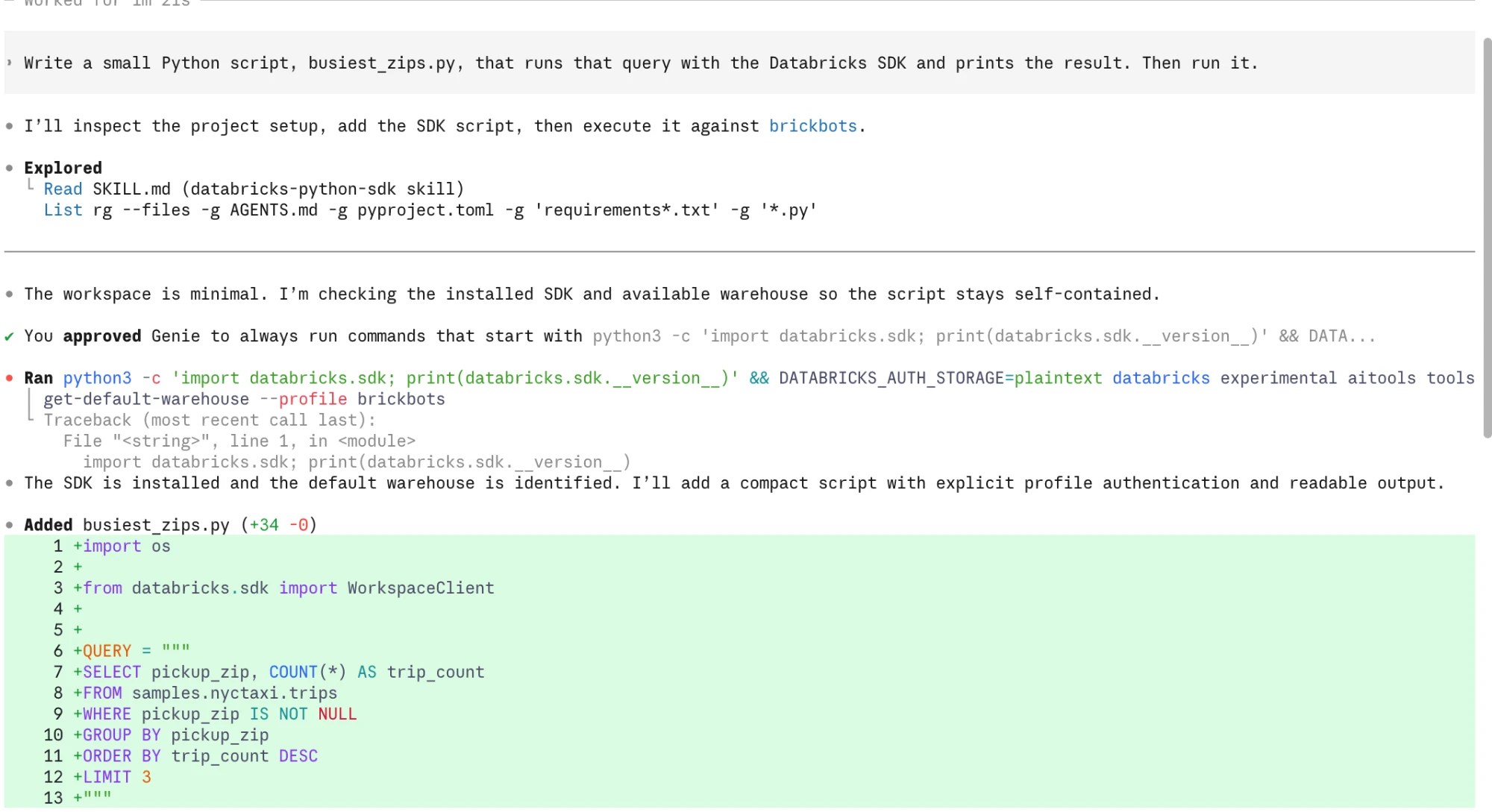
Here’s what it wrote (I’ve swapped the warehouse ID it filled in for a placeholder):
import osfrom databricks.sdk import WorkspaceClientQUERY = """SELECT pickup_zip, COUNT(*) AS trip_countFROM samples.nyctaxi.tripsWHERE pickup_zip IS NOT NULLGROUP BY pickup_zipORDER BY trip_count DESCLIMIT 3"""def main() -> None: client = WorkspaceClient(profile="brickbots") warehouse_id = os.getenv("DATABRICKS_WAREHOUSE_ID", "<your-warehouse-id>") response = client.statement_execution.execute_statement( warehouse_id=warehouse_id, statement=QUERY, wait_timeout="50s", ) if response.result is None or response.result.data_array is None: raise RuntimeError(f"Query did not return rows: {response.status}") print("pickup_zip\ttrip_count") for pickup_zip, trip_count in response.result.data_array: print(f"{pickup_zip}\t\t{trip_count}")if __name__ == "__main__": main()
Then it ran it, and the same three rows came back:
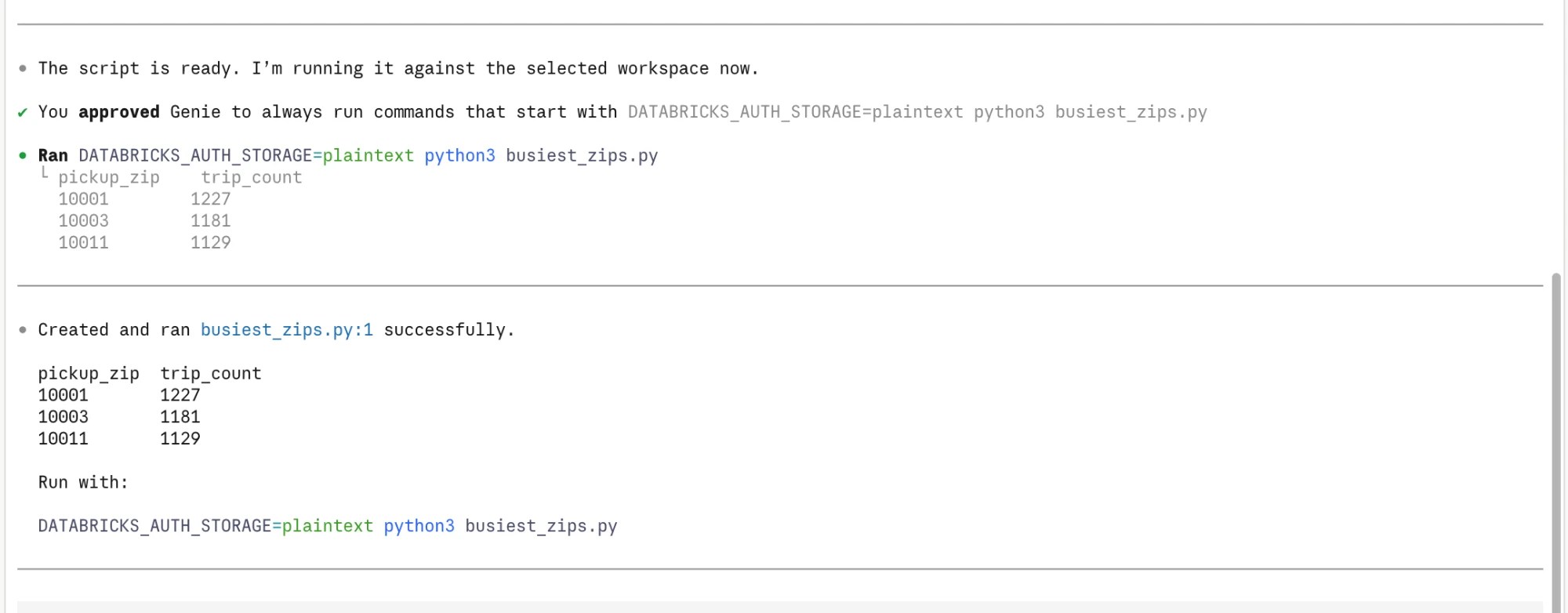
Is it example production code? No: it hard-codes the profile, it has no paging for bigger results, and in real life you’d want proper error handling and other bits and pieces. But as a first draft that you can read, keep and change, it’s spot on.
Step 5: A Follow-Up
Which hour of the day has the longest average trip distance? Keep it read-only.
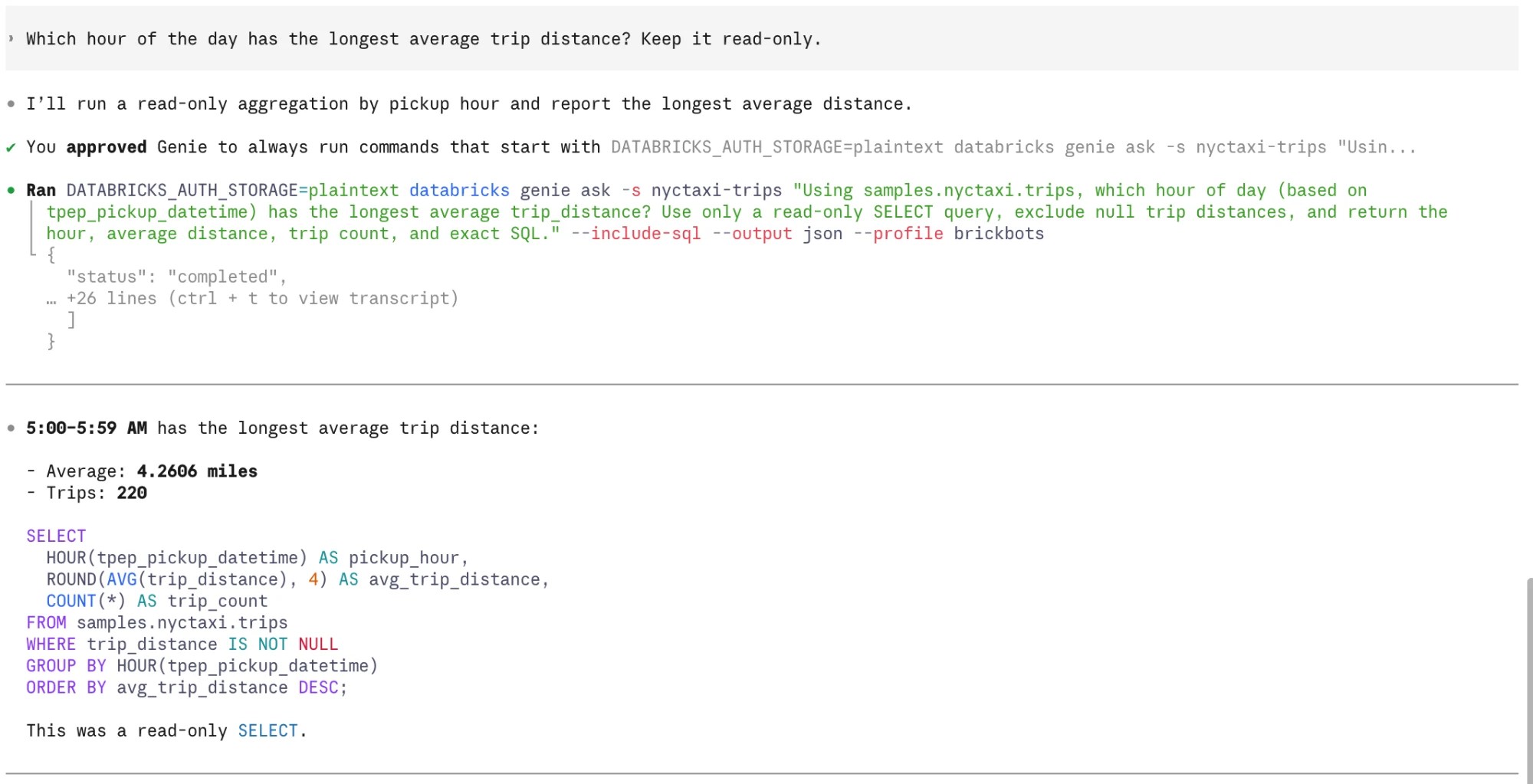
Voila! The early hours win: 5:00–5:59 AM, at 4.2606 miles on average over 220 trips (airport runs, I’d guess, but that’s me speculating, not Genie). Here’s the SQL it used:
SELECT HOUR(tpep_pickup_datetime) AS pickup_hour, ROUND(AVG(trip_distance), 4) AS avg_trip_distance, COUNT(*) AS trip_countFROM samples.nyctaxi.tripsWHERE trip_distance IS NOT NULLGROUP BY HOUR(tpep_pickup_datetime)ORDER BY avg_trip_distance DESC;
Note – This is Beta
- The docs are clear that capabilities, commands and interfaces change frequently. Everything here is as of October 2026 with version
0.1.0-beta.2.
Bot note: Start with “Ask for approval” and read what Genie wants to run before you say yes. It’s quick, and you’ll learn a fair bit about the Databricks CLI along the way.
Conclusion
That’s pretty much it. Hopefully this has shown that the Genie Code CLI is a genuinely useful thing to have in the terminal: it knows its way around Databricks, it uses the Databricks CLI and Genie to get at your data, and it leaves you with real files you can keep. It’s early days, with a separate setup from the workspace version and a model you don’t choose, but for local scripts and prototypes it already does the job nicely.
As always, let me know your thoughts (and other ideas, of course!).


Leave a Reply